
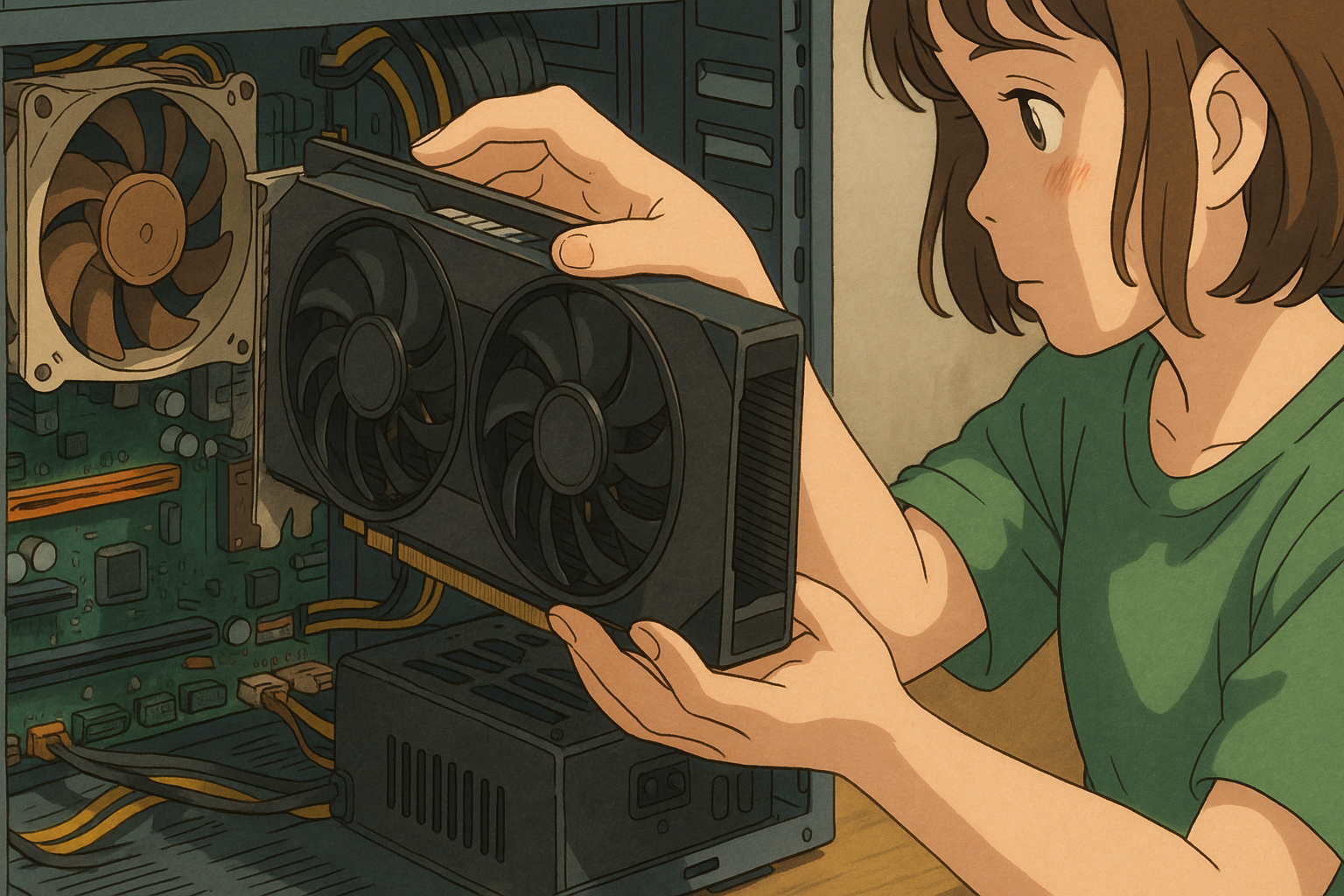
Dreaming of a custom PC? ✨ There’s nothing quite like the satisfaction of building your ideal machine with your own hands. But questions like “How much will it cost?” and “Which parts should I choose?” can be daunting, especially if it’s your first time building a PC. You might feel lost about where to even begin.
The secret to a successful PC build lies in accurate budgeting and planning! It’s the first, and arguably most crucial, step to prevent budget overruns, ensure your chosen components work together (compatibility), and create a PC you’ll be genuinely happy with. Skipping this planning phase can lead to unexpected problems, discovering parts don’t fit or work together, and the frustrating expense of having to rebuy components.
By planning carefully, you can avoid these risks and confidently dive into the world of PC building. Creating a budget isn’t just about adding up prices; it’s a process of optimization – managing risks and squeezing the best possible performance out of your limited funds.
This article will guide you through the PC budgeting process from scratch! We’ll cover essential components, how to research prices on Amazon.com, provide sample build ideas for different budgets, and offer tips specifically for beginners. Let’s take the first step towards your dream PC together! 💪
This guide is especially recommended for PC building beginners, those looking to build the best PC within their budget, and anyone planning to source parts from Amazon.com.
- Why is Budgeting Crucial for Building a PC? 🤔
- Essential PC Components for Your Build 🖥️
- Researching Prices on Amazon.com: Creating Your Budget Sheet 🔍
- 【By Budget】Sample Custom PC Builds (Amazon.com Estimates) 💰
- Beginner’s Guide: Budgeting Tips and Pitfalls to Avoid 💡
- Conclusion: The Best Custom PC Starts with the Best Plan! 🎉
Why is Budgeting Crucial for Building a PC? 🤔

Before you jump into buying parts, let’s understand why creating a detailed budget or estimate is so vital. It serves four key roles:
1. Your Budgeting Compass 🧭: Preventing Overspending
One of the biggest draws of building your own PC is the freedom to choose parts according to your budget. However, this freedom also means costs can quickly spiral out of control. CPU, graphics card, RAM… once you start looking at high-performance options, it’s easy to get tempted and blow past your budget.
It’s essential to set a firm budget cap upfront and plan how much you can allocate to each component. This prevents wasteful spending and helps you aim for maximum performance within your means. It’s not just about picking the cheapest parts, but finding the right balance between price, performance, and warranty/support. During the budgeting phase, double-check for “hidden costs” like sales tax and shipping (especially if you’re not an Amazon Prime member or buying from third-party sellers).
If you find yourself going over budget, planning allows you to make strategic decisions: downgrade a specific component slightly, or trim the budget from another part to compensate.
Furthermore, it’s wise to prepare for unexpected expenses. Issues like “I’m short one cable” or “I accidentally damaged a part with static electricity” can happen. Including a contingency fund of about 5% to 10% of your total budget provides peace of mind and allows you to handle unforeseen issues without panic.
PC component prices are constantly changing due to sales, new product launches, and market fluctuations. What seems like the best choice today might not be tomorrow. Therefore, your budget shouldn’t be a one-time document but a living document that you revisit and adjust, checking price trends right up until you purchase. This flexible review process is key to getting the best value within your budget.
2. The Compatibility Charm 🙏: Avoiding Hardware Conflicts
PC components have “compatibility” issues – they need to work together correctly. This is a major, yet crucial, hurdle, especially for beginners. Creating a budget plan is a powerful tool for identifying and avoiding these potential conflicts before you buy.
For example:
- CPU & Motherboard: The CPU must match the motherboard’s socket type (e.g., Intel’s LGA1700, AMD’s AM5). They won’t physically connect otherwise.
- RAM & Motherboard: Memory has standards like DDR4 and DDR5. You need RAM that matches the type and maximum supported speed specified by your motherboard.
- Physical Size: High-performance graphics cards can be very long and thick. You must confirm if the card will physically fit inside your chosen PC case. Similarly, large CPU coolers need to fit within the case’s width limits and not interfere with your RAM modules.
- Power Supply (PSU): The PSU must have enough wattage capacity to power all your components reliably. It also needs the correct type and number of power connectors for your specific CPU and graphics card (e.g., EPS 8-pin for CPU, PCIe 6+2 pin or 12VHPWR for GPU).
Compatibility checks aren’t just about individual parts; you need to consider the system as a whole. Even if the CPU socket matches, the motherboard’s chipset might not fully support all features of a higher-end CPU. A powerful GPU can be “bottlenecked” by a weak CPU, meaning you won’t get the GPU performance you paid for.
By meticulously checking these compatibility points during the budgeting phase, you can prevent the nightmare scenario of “I bought it, but I can’t build it!” or “It won’t turn on!”, saving you significant time and money. This careful verification ensures a smoother assembly process and stable operation later.
3. The Cost-Performance Blueprint 📈: Balancing Power and Price
To build a PC that offers the best performance for your budget, deciding where to allocate your funds is key. The “best PC” varies entirely depending on the user and their intended use. Optimization based on your needs happens during the planning stage.
- Gaming PC: Prioritize the Graphics Card (GPU) for rendering beautiful visuals and smooth frame rates. The next most important component is a CPU capable of keeping up with the GPU.
- Creative Workstation (Video Editing, 3D Rendering, Programming): Focus on a CPU with multiple cores and high clock speeds, along with plenty of high-speed RAM to handle large datasets temporarily. Fast storage (NVMe SSD) also significantly impacts workflow efficiency.
- General Use (Web Browse, Office Tasks, Video Streaming): High-end components are often unnecessary. You can utilize the CPU’s integrated graphics (if available), keeping costs down while ensuring a smooth experience for everyday tasks.
By considering the importance of each part relative to your primary use case during budget creation, you can allocate funds effectively. This avoids overspending on unnecessary performance (overkill) or being frustrated by inadequate specs, leading to a cost-effective, optimized build.
The goal isn’t just picking expensive parts, but identifying the best “performance per dollar.” For instance, a top-tier GPU might be extremely expensive, while the model just below it could offer over 90% of the performance for significantly less money. Check benchmark results on reputable review sites to find parts in the “sweet spot” of price-to-performance – this is smart budgeting.
4. The Smart Shopping Starting Point 🛒: Gathering Parts Efficiently
Once your budget is drafted and your component list is finalized, you move to the purchasing stage. Your budget plan serves as a crucial guide here too. Having a list of exactly which parts you need, and potentially where you plan to buy them, makes the shopping process much smoother.
On online stores like Amazon.com, prices fluctuate frequently, and major sales events like Prime Day, Black Friday, and Cyber Monday occur. With your finalized list, you can use features like Amazon’s Wish List to monitor prices for your desired components and potentially buy them when they drop or during a sale, saving money.
Furthermore, knowing the precise cost of building it yourself allows for a better comparison with pre-built systems (BTO – Build to Order). While BTO PCs offer convenience and warranties, building your own often allows for higher-quality components at the same price point or the ability to customize specific parts to your liking. Your detailed budget provides an objective basis for deciding which route (DIY or pre-built) is truly better value and meets your needs.
In summary, budgeting is far more than just calculating costs. It’s the foundation for managing funds, avoiding compatibility nightmares, optimizing performance, and planning your purchase strategy. This process deepens your understanding of how PCs work, reduces uncertainty, and builds confidence that you can build your own PC.
Essential PC Components for Your Build 🖥️

A computer is a complex machine made of many interconnected parts. Here’s a breakdown of the main components required to build a functioning PC, their roles, key selection points, compatibility checks, budget impact, and example search terms for Amazon.com. Remember, these parts work together as a system, influencing each other’s performance and compatibility.
Main PC Components List
| Part Name | Role | Brief Description & Selection Tips | Budget Impact | Example Amazon.com Search Terms |
|---|---|---|---|---|
| CPU (Processor) | The PC’s Brain 🧠 | Handles calculations. Faster CPU = faster overall PC. Choose Intel Core or AMD Ryzen based on use case. [Compatibility] Match socket (LGAxxxx / AMx) & chipset with motherboard. May need separate cooler. | High (Med-High) | CPU Intel Core i7, CPU AMD Ryzen 7, CPU 14th Gen, CPU AM5 |
| Motherboard | Connective Hub 🔌 | Connects CPU, RAM, GPU, etc., facilitating data transfer. [Compatibility] Match CPU socket/chipset, RAM type (DDR4/DDR5) & max capacity, form factor (ATX, Micro-ATX, Mini-ITX) with case. Check needed PCIe slots, USB ports, Wi-Fi. | Medium (Med) | Motherboard LGA1700, Motherboard AM5, Motherboard B760, Motherboard X670, Motherboard ATX |
| RAM (Memory) | Workspace ✍️ | Temporarily stores data CPU is actively using. More RAM = better multitasking. Choose capacity (16GB, 32GB+) based on use. [Compatibility] Match type (DDR4/DDR5) & speed (MHz) to motherboard support. 2-stick kits (dual-channel) are efficient. Check clearance with large CPU coolers. | Medium (Low-Med) | RAM DDR5 32GB, RAM DDR4 16GB, Desktop RAM, RAM 6000MHz |
| Storage | Data Vault 💾 | Long-term storage for OS, apps, files. SSD (esp. NVMe M.2) for speed, HDD for capacity. Consider separate OS/data drives. Choose capacity needed. [Compatibility] Match connection (SATA, M.2) to motherboard slots/ports. | Medium (Med) | SSD NVMe 1TB, SSD M.2 2TB, Internal SSD SATA, HDD 4TB, M.2 SSD Gen4 |
| Graphics Card (GPU) | Visual Powerhouse 🎬🎮 | Handles graphics rendering, video output. Crucial for gaming. Choose NVIDIA GeForce / AMD Radeon based on needs/budget. Check performance (model #), VRAM, power draw. [Compatibility] Check physical size (length/thickness) fits case, PSU has required power connectors & wattage. | High | Graphics Card RTX 4070, Graphics Card RX 7800 XT, GeForce, Radeon, GPU |
| Power Supply (PSU) | PC’s Heart ❤️⚡ | Delivers stable power to all components. Choose wattage (W) exceeding total system draw + headroom (20-30%). Check 80 PLUS efficiency rating (Bronze+ recommended). [Compatibility] Ensure correct type/number of connectors (CPU EPS, PCIe). Check form factor (ATX/SFX). | Medium (Med) | PSU 750W Gold, Power Supply 850W Platinum, ATX Power Supply, PSU Fully Modular |
| PC Case | Protective Home 🏠 | Houses and protects components, aids cooling. [Compatibility] Must support motherboard form factor (ATX, etc.). Check clearance for GPU length & CPU cooler height. Consider airflow, expandability, aesthetics, noise. | Low-Medium | PC Case ATX Mid Tower, PC Case Micro ATX, PC Case Mini ITX, White PC Case |
| CPU Cooler | Heat Manager ❄️ | Keeps CPU cool for stable performance. Choose based on CPU heat output/overclocking plans. Air or Liquid (AIO). Check cooling performance, noise. [Compatibility] Match CPU socket. Check case height limit & RAM clearance. | Low-Medium | CPU Cooler Air, CPU Cooler Liquid, CPU Cooler LGA1700, CPU Cooler AM5, Noctua NH-U12A |
| OS (Operating System) | Core Software 💻 | Runs the PC (e.g., Windows). Usually Windows (latest version recommended). Check license type (OEM/Retail). USB install is common. | Low-Medium | Windows 11 Home, Windows 11 Pro OEM |
| Other | Peripherals, Fans, etc. | Monitor, keyboard, mouse, case fans needed separately. Factor these into the total budget if you don’t already own them. | Variable | Monitor 27 inch, Gaming Keyboard, Wireless Mouse, Case Fan 120mm |
Google スプレッドシートにエクスポート
Carefully selecting and verifying the compatibility of these parts is how you build your unique PC. Next, let’s look at how to research prices on Amazon.com and create your budget sheet.
Researching Prices on Amazon.com: Creating Your Budget Sheet 🔍

Once you understand the necessary components, it’s time for price research and budget creation. We’ll use Amazon.com as the primary example, but cross-referencing with other retailers (like Newegg, Best Buy, Micro Center) or price comparison sites can help find better deals.
3.1 Smart Searching on Amazon.com 🛒
Here’s how to efficiently find the right parts among Amazon’s vast selection:
- Use Specific Keywords: Instead of just searching “CPU,” use precise terms like “
CPU Intel Core i7 14700K” or “Motherboard B760M Micro ATX DDR5“. Include manufacturer, series, model number, and key specs. This filters out irrelevant results. Use the “Example Search Terms” from the previous section as a starting point. - Utilize Categories and Filters: Use the sidebar (desktop) or top filters (mobile) to narrow results. Navigate through categories like “Electronics” -> “Computers & Accessories” -> “Computer Components” -> “CPUs” or “Motherboards.” Then, apply filters for critical specs like “CPU Socket,” “Chipset,” “Memory Type,” “Form Factor,” or “Brand.” This is essential for finding compatible parts (e.g., filter motherboards by “CPU Socket: LGA1700” if you chose an LGA1700 CPU).
- Check Reviews and Ratings: Customer reviews offer insights into real-world usage, quality, and potential issues. Pay attention to low-star reviews, as they might highlight specific problems, assembly difficulties, or support issues. However, read reviews critically – they are subjective and can sometimes be inaccurate or even fake (“review bombing” or overly positive fakes). Look for detailed, balanced reviews and consider cross-referencing with professional tech reviews from reputable websites.
- Verify Seller and Shipper: Amazon sells products directly (“Ships from Amazon / Sold by Amazon”) but also hosts many third-party sellers (Marketplace). Always check the seller’s reputation and whether the item is fulfilled by Amazon or the seller. Buying directly from Amazon or highly reputable sellers often provides smoother returns, warranty claims, and support, especially for expensive components.
- Leverage the Wish List: Found a promising part? Add it to your Amazon Wish List instead of buying immediately. This helps you manage potential components, compare different build options, and keep track of items. You can often enable notifications for price drops on items in your Wish List (check settings), helping you time your purchases better.
3.2 Creating Your Budget Sheet 📝
Compile the information and prices you find into a spreadsheet (like Microsoft Excel, Google Sheets) or even a detailed note. This “budget sheet” becomes the blueprint for your build.
Essential Items for Your Budget Sheet:
- Component Category: CPU, Motherboard, RAM, Storage, GPU, PSU, Case, CPU Cooler, OS, etc.
- Manufacturer & Model: Exact product name (e.g.,
Intel Core i5-14600K,MSI PRO B760M-A WIFI DDR4). - Quantity: Usually 1, but could be 2 (for RAM kits counted as 1 item), multiple fans, etc.
- Unit Price (USD, incl. Tax Estimate): Price found on Amazon.com. Remember prices fluctuate; note the date you checked. Include an estimate for sales tax based on your location (this varies by state/locality in the US).
- Subtotal: Unit Price x Quantity.
- Compatibility Check: Columns or notes to mark checks as complete (e.g., Socket OK, RAM Type OK, Case Fit OK, PSU Connectors OK). Use “OK,” “Needs Check,” “Done,” etc.
- Notes: Space for key specs (RAM speed, SSD speed), product page URL, alternative part ideas, warnings, etc.
- Component Subtotal: Sum of all part subtotals.
- (Recommended) Shipping Costs: If not covered by Prime or buying from sellers who charge shipping.
- (Recommended) OS Cost: If purchasing Windows separately.
- (Recommended) Contingency Fund: 5-10% of the component subtotal for unexpected issues.
- (Recommended) Grand Total: The final estimated cost including components, tax, shipping, OS, and contingency.
Key Points for Budgeting:
- Prices Fluctuate: Treat prices as estimates. Check again right before buying.
- Factor in Sales Tax & Shipping: These can add a significant amount. Don’t forget them! Sales tax is almost always applicable in the US.
- Contingency is Crucial: Unexpected needs (extra cable, replacement screw) or minor accidents happen. This fund prevents budget disasters.
- Don’t Forget OS & Peripherals: Windows costs money. If you need a monitor, keyboard, or mouse, budget for them separately.
Sample Budget Sheet Layout (Spreadsheet):
| Category | Make & Model | Qty | Unit Price (USD, Est. Tax Incl.)* | Subtotal | Compatibility Checks | Notes (URL, Specs) |
|---|---|---|---|---|---|---|
| CPU | Intel Core i5-14600K | 1 | $330 | $330 | LGA1700 OK | |
| Motherboard | MSI PRO B760M-A WIFI DDR5 | 1 | $180 | $180 | LGA1700, DDR5 OK, Micro-ATX | Wi-Fi/BT Included |
| RAM | Corsair Vengeance DDR5 32GB (2x16GB) 6000MHz C36 | 1 | $110 | $110 | DDR5 6000 OK, Dual Kit | |
| Storage (SSD) | Crucial P5 Plus 1TB NVMe M.2 | 1 | $70 | $70 | M.2 NVMe OK, Gen4 | |
| Graphics Card | ZOTAC GAMING GeForce RTX 4060 Ti 8GB Twin Edge | 1 | $420 | $420 | PCIe OK, Length OK for Case | |
| Power Supply | Corsair RM750e 750W 80+ Gold | 1 | $100 | $100 | 750W OK, Connectors OK, ATX | Fully Modular |
| PC Case | Fractal Design Pop Mini Air RGB Black TG | 1 | $100 | $100 | Micro-ATX OK, GPU/Cooler Height OK | |
| CPU Cooler | DeepCool AK400 | 1 | $35 | $35 | LGA1700 OK, Height OK, RAM Clear OK | |
| Component Subtotal | $1345 | |||||
| OS | Windows 11 Home OEM | 1 | $125 | $125 | ||
| Shipping | $0 | $0 | (Assuming Prime or Free Shipping) | |||
| Subtotal (OS/Ship Incl.) | $1470 | |||||
| Contingency ( ~7%) | $105 | $105 | ||||
| Grand Total (Est.) | $1575 | Sales Tax varies, estimated here |
Google スプレッドシートにエクスポート
This budget sheet is your command center for planning, tracking compatibility, and managing costs. Use it wisely!
【By Budget】Sample Custom PC Builds (Amazon.com Estimates) 💰

Here are a few sample PC build configurations tailored to different budget ranges, using estimated prices from Amazon.com around April 2025. Treat these as starting points or templates. Component prices fluctuate constantly, so always verify current pricing before purchasing. The key is to adapt these examples based on your primary use (gaming, editing, Browse) to find your optimal build.
Important Notes:
- Prices shown are estimates for April 2025 and will likely change. Verify yourself on Amazon.com or other retailers.
- Sales Tax is NOT included in the component prices below (it varies by location) but should be added to your personal budget.
- Shipping costs are assumed to be $0 (e.g., via Amazon Prime).
- The Operating System (Windows) cost (approx. $120-$140) is NOT included in the totals below.
- Costs for peripherals (monitor, keyboard, mouse) are NOT included.
- Component compatibility is generally considered, but final verification is your responsibility. Pay close attention to physical clearance for large GPUs and CPU coolers within the case.
4.1 Entry-Level Build (~0 – 0): Web, Streaming, Light Tasks 💻
Ideal for everyday use like web Browse, email, video streaming, and Office applications. Can also handle light gaming at adjusted settings. Focuses on value and cost-efficiency.
| Component Category | Example Model (Illustrative) | Estimated Price (USD) | Notes |
|---|---|---|---|
| CPU | AMD Ryzen 5 7600 / Intel Core i5-14400 | $200 | Includes capable integrated graphics (GPU) |
| Motherboard | B650 / B760 Chipset (Micro-ATX) | $130 | Basic features, ensure appropriate socket/RAM |
| RAM | DDR5 16GB (2x8GB) 5600MHz+ | $65 | Sufficient for general use |
| Storage (SSD) | NVMe M.2 SSD 1TB | $65 | Fast boot/load times |
| Power Supply | 550W-650W 80PLUS Bronze | $60 | Provides headroom for potential future GPU addon |
| PC Case | Functional Micro-ATX Case | $60 | Focus on value over premium features |
| CPU Cooler | Stock cooler (included) or Basic Air Cooler | $0 – $20 | Stock cooler often sufficient for these CPUs |
| Total (Est. Excl. OS/Periph) | ~$580 – $600+ | Add Sales Tax, OS Cost ($120+) |
Google スプレッドシートにエクスポート
Key Point: This build leverages the CPU’s integrated graphics (iGPU), eliminating the need for an expensive dedicated graphics card and significantly reducing cost. It’s perfect for non-gaming tasks and offers a pathway to upgrade with a GPU later if desired (check PSU wattage if upgrading).
4.2 Mid-Range Build (~00 – 00): Great 1080p/1440p Gaming! 🎮
Aimed at comfortably playing most popular games at Full HD (1080p) or even Quad HD (1440p) resolutions with high settings. Also suitable for moderate video editing or streaming. Offers a strong balance of performance and price.
| Component Category | Example Model (Illustrative) | Estimated Price (USD) | Notes |
|---|---|---|---|
| CPU | AMD Ryzen 5 7600X / Intel Core i5-14600K | $250 – $300 | Strong gaming and multitasking performance |
| Motherboard | B650 / B760 Chipset (ATX or Micro-ATX) | $150 – $180 | Consider Wi-Fi, better VRMs, more features |
| RAM | DDR5 32GB (2x16GB) 6000MHz | $100 – $120 | Ample for gaming, multitasking, light creative work |
| Storage (SSD) | NVMe M.2 SSD 1TB (Gen4) | $70 | Fast storage for OS, games, apps |
| Graphics Card | NVIDIA GeForce RTX 4060 Ti / AMD Radeon RX 7700 XT | $400 – $450 | Excellent for 1080p/1440p gaming |
| Power Supply | 750W 80PLUS Gold | $100 | Quality PSU with sufficient headroom |
| PC Case | Mid-Tower Case with Good Airflow | $80 – $100 | Balance of aesthetics and cooling |
| CPU Cooler | Mid-Range Air Cooler (e.g., Thermalright PA120/PS120) | $40 – $50 | Keeps CPU cool under load |
| Total (Est. Excl. OS/Periph) | ~$1200 – $1400+ | Add Sales Tax, OS Cost ($120+) |
Google スプレッドシートにエクスポート
Key Point: This build combines a capable modern CPU with a solid mid-range GPU, hitting the sweet spot for many gamers. 32GB of RAM provides comfort for multitasking and some creative tasks. The 1TB NVMe SSD ensures quick load times. A very popular and satisfying configuration for most users.
4.3 High-End Build (~00+): Max Settings Gaming, Heavy Creative Work 🔥
For those seeking top-tier performance for high-resolution (1440p/4K) or high-refresh-rate gaming at maximum settings, demanding video editing, 3D rendering, or high-quality streaming. Little compromise on power.
| Component Category | Example Model (Illustrative) | Estimated Price (USD) | Notes |
|---|---|---|---|
| CPU | AMD Ryzen 7 7800X3D / Intel Core i7-14700K | $380 – $450 | Top-tier gaming (7800X3D) or productivity (14700K) |
| Motherboard | X670 / Z790 Chipset | $250 – $350 | High-end features, connectivity, OC support |
| RAM | DDR5 32GB (2x16GB) Fast Kit (e.g., 6000MHz CL30) | $120 – $150 | Optimized speed and latency for performance |
| Storage (SSD) | NVMe M.2 SSD 2TB (Fast Gen4/Gen5) | $130 – $180 | Large, high-speed storage for games/projects |
| Graphics Card | NVIDIA GeForce RTX 4070 Ti SUPER / AMD Radeon RX 7900 XT | $800 – $900 | Dominant 1440p/4K gaming performance |
| Power Supply | 850W – 1000W 80PLUS Gold/Platinum | $150 – $200 | High-quality, high-capacity power delivery |
| PC Case | Premium Mid/Full Tower with Excellent Airflow/Features | $150 – $200 | Accommodates large parts, optimized cooling |
| CPU Cooler | High-End Air Cooler (Noctua NH-D15) / 280mm/360mm AIO | $100 – $160 | Effectively cools high-TDP CPUs |
| Total (Est. Excl. OS/Periph) | ~$2100 – $2500+ | Add Sales Tax, OS Cost ($120+) |
Google スプレッドシートにエクスポート
Key Point: This configuration boasts a powerful CPU and a high-end GPU capable of handling almost any game or demanding creative task thrown at it. Fast, large storage and optimized RAM contribute to overall system responsiveness. Significant investment in cooling is necessary to maintain performance and stability for these power-hungry components. Budget allows for further customization like more RAM, storage, or an even higher-tier GPU.
These examples are just maps to start your journey. Your ideal build emerges by tweaking these based on your specific budget, primary use case (specific games, software), aesthetic preferences, and ongoing research. Use your budget sheet to compare options and enjoy the process of finding your perfect combination!
Beginner’s Guide: Budgeting Tips and Pitfalls to Avoid 💡

Embarking on your first PC build, especially the planning stage, can feel overwhelming with all the jargon and choices. Here are some tips to navigate common beginner challenges and crucial points to watch out for.
5.1 Where to Start? The Order of Component Selection 🤔
Trying to choose all parts simultaneously can lead to information overload. Following a structured order, considering dependencies, makes the process smoother:
- Define Use Case and Budget: This is paramount. What will you primarily use the PC for (gaming, work, Browse)? What is your absolute maximum budget? These answers guide all subsequent choices.
- Choose the CPU: The ‘brain’ of your PC. Select Intel or AMD, and the performance tier (Core i3/5/7/9, Ryzen 3/5/7/9) based on your needs and budget. This choice dictates compatible motherboards.
- Select the Motherboard: Pick a board with the correct socket (e.g., LGA1700, AM5) and chipset (e.g., B760, B650, Z790, X670) for your chosen CPU. Also, consider necessary features (Wi-Fi, USB ports) and the form factor (ATX, Micro-ATX, Mini-ITX) which determines case compatibility.
- Choose RAM (Memory): Verify the type (DDR4/DDR5) supported by your motherboard. Select the capacity (16GB minimum, 32GB common for gaming/work) and speed (MHz). Usually, buy a two-stick kit for dual-channel performance.
- Select the Graphics Card (GPU) (If Needed): If gaming, video editing, or other graphically intense tasks are planned, choose a GPU based on your budget and performance goals. If your needs are basic (Browse, office work) and your CPU has integrated graphics, you might skip this expensive component.
- Choose Storage: A fast NVMe M.2 SSD is highly recommended for the OS and frequently used applications (500GB minimum, 1TB+ ideal). Add more SSD or HDD capacity if you need space for lots of games, media files, etc.
- Select the PC Case: Must support your motherboard’s form factor. Crucially, verify it has enough clearance for your chosen GPU’s length and CPU cooler’s height. Also consider airflow, build quality, drive bays, and aesthetics.
- Select the Power Supply (PSU): Calculate the estimated total power draw of your components (CPU TDP + GPU TDP + ~50-100W for others is a rough guide, or use online PSU calculators). Choose a PSU with wattage that exceeds this total by a comfortable margin (20-30%+ headroom). Look for an 80 PLUS Bronze rating or higher (Gold is often a good balance). Verify it has all the necessary power connectors for your motherboard and GPU.
- Select the CPU Cooler (If Needed): Required if your CPU doesn’t include one (like Intel “K” models) or if you want better cooling/lower noise than the stock cooler. Ensure it’s compatible with your CPU socket, fits within the case’s height limit, and (for large air coolers) doesn’t interfere with RAM modules.
- Choose the Operating System (OS): Select Windows (usually Windows 11 Home/Pro). Decide on the license type (OEM vs. Retail).
This order isn’t rigid, but it follows logical dependencies (CPU dictates Mobo, Mobo dictates RAM type, etc.), making compatibility checks more manageable.
5.2 Double-Check Compatibility! 🙏
This is the most critical step during planning and where beginners often slip up. Failure here leads to parts not fitting, the system not booting, or instability. Re-check these points meticulously:
- CPU Socket: Does the CPU socket exactly match the motherboard socket?
- RAM Type/Speed/QVL: Is the RAM type (DDR4/DDR5) and speed supported by the motherboard? For best assurance, check the motherboard manufacturer’s website for the QVL (Qualified Vendor List) to see if your specific RAM kit model has been tested and verified.
- Motherboard Form Factor & Case: Does the case explicitly support your motherboard’s size (ATX, Micro-ATX, Mini-ITX)?
- GPU Size & Case: Does the GPU’s length and thickness (slot count) fit within the case’s maximum allowed dimensions? Check the case specs!
- CPU Cooler Height & Case: Does the CPU cooler’s height fit within the case’s maximum allowed cooler height? Check the case specs!
- CPU Cooler & RAM Clearance: Will a large air cooler physically collide with your RAM modules (especially those with tall heat spreaders)? Check cooler dimensions and diagrams.
- Storage Interface & Motherboard/Case: Do you have available M.2 slots on the motherboard for your M.2 SSDs? Do you have available SATA ports and drive bays in the case for SATA SSDs/HDDs?
- (Advanced) Some motherboards disable certain SATA ports when an M.2 slot is populated. Check the motherboard manual.
- PSU Wattage & Connectors: Is the PSU wattage sufficient for all components plus headroom? Does it have the correct number and type of connectors: 24-pin ATX (main power), 4+4 pin or 8-pin EPS (CPU power), and PCIe 6/8-pin or 12VHPWR (GPU power)?
- (Advanced) Check if your motherboard has the necessary internal USB headers to connect the case’s front panel USB ports (Type-A, Type-C).
Find this compatibility information on manufacturer websites (product pages, spec sheets, manuals – often downloadable PDFs). Websites like PCPartPicker.com are incredibly helpful automated compatibility checkers, but always manually double-check critical specs yourself, as their database isn’t always perfect or might miss physical clearance issues.
If unsure, ask knowledgeable staff at stores like Micro Center, post detailed questions on forums like Reddit’s r/buildapc, or consult reliable review sites.
5.3 Watch Out for Sales and Price Changes 💸
Component prices on Amazon.com and other online retailers change constantly. Major US sales events (Amazon Prime Day, Black Friday, Cyber Monday, etc.) and seasonal sales can offer significant discounts.
- Monitor Sales: Keep an eye on Amazon’s deals pages, price comparison sites, tech deal websites, and relevant subreddits or forums.
- Use Price Tracking Tools: Browser extensions like Keepa can show historical price charts directly on Amazon product pages. This helps you judge if the current price is actually a good deal compared to past lows.
- Don’t Rush: A sale price is tempting, but don’t buy impulsively. Ensure the part is the one on your list or a compatible alternative. Buying the wrong part because it was cheap defeats the purpose. Stick to your plan and use sales strategically.
5.4 Read Reviews Critically 👀
Customer reviews on Amazon are useful but require careful interpretation.
- Beware of Fake Reviews: Look out for overly generic praise, unnatural language, or a sudden flood of exclusively 5-star reviews. External tools or just critical reading can help spot suspicious patterns.
- Consider User Context: Negative reviews (“doesn’t work,” “slow”) might stem from user error, incompatibility with their specific system, or unrealistic expectations. Positive reviews might just mean it worked for their specific, possibly less demanding, use case.
- Look Past Bias: Some reviews might be skewed by brand loyalty (“fanboys”) or negativity (“haters”).
- Cross-Reference: Treat reviews as individual data points. Read multiple reviews, look for consistent themes, and ideally, compare them against professional reviews and benchmark data from reputable tech websites and YouTube channels.
5.5 Know Where to Ask for Help 🙋♀️
Don’t get stuck! If you have questions during planning:
- Retail Store Staff: If you live near a store like Micro Center, their staff are often very knowledgeable and can offer personalized advice.
- Online Communities: Forums like Reddit’s r/buildapc and r/buildapcforme are excellent resources where experienced builders help beginners with build checks and suggestions. Be sure to provide your budget, intended use, and current parts list (PCPartPicker link is standard).
- Tech Review Sites & YouTubers: Many reputable sites (e.g., Tom’s Hardware, AnandTech, Gamers Nexus, Linus Tech Tips) offer detailed reviews, benchmarks, build guides, and tutorials. Their comment sections or forums might also be helpful.
- Manufacturer Support: For very specific questions about a component’s specs or compatibility, checking the manufacturer’s official FAQ or contacting their support directly can be useful.
Your first budget might take time, but using these tips, proceed patiently and enjoy the learning process. Thorough research and comparison will lead you to the best configuration for your needs!
Conclusion: The Best Custom PC Starts with the Best Plan! 🎉

Budgeting and planning your PC build isn’t just about adding up costs. It’s the architectural blueprint for your ideal machine, a critical process for maximizing your budget, preventing assembly headaches, and ensuring you get the PC you truly want.
In this guide, we’ve covered:
- The Importance of Budgeting: Why it’s essential for cost control, compatibility assurance, performance optimization, and smart purchasing.
- Understanding Key Components: The role, selection basics, and compatibility points for crucial parts like the CPU, motherboard, RAM, GPU, etc.
- Amazon.com Research & Budget Sheets: How to effectively search for parts, interpret reviews, and create a detailed budget spreadsheet.
- Sample Builds by Budget: Example configurations for entry-level, mid-range, and high-end builds using estimated Amazon.com pricing, serving as starting points for customization.
- Beginner Tips & Warnings: Advice on the order of selection, detailed compatibility checks, navigating price changes, critically evaluating reviews, and finding help when needed.
With an accurate and detailed budget plan, you can:
💰 Build with confidence, free from the anxiety of overspending. 🔧 Drastically reduce the risk of frustrating compatibility issues (“It doesn’t fit!” or “It won’t turn on!”). 🎯 Pinpoint the most cost-effective configuration for your specific needs, whether it’s gaming, creative work, or general use. 🛒 Navigate the purchasing and building process smoothly and systematically.
Now, use this guide, head over to Amazon.com (and perhaps other retailers like Newegg or Micro Center’s site), start Browse for components that excite you, and begin creating your own personalized budget sheet! It might seem complex at first, but as you select each part, research prices, and confirm compatibility, you’ll naturally deepen your understanding of PC hardware and feel the growing excitement of building your very own machine.
Your best PC building experience starts with this careful planning phase. We wish you a fun and successful PC building journey! 💪


コメント